Vertex Meadow and Tools Demo
Vertex Meadow
Vertex Meadow is a tool that allows you to create 3d worlds with 2d images.
- Vertex Meadow
- In Edit Mode (press E), click help for more info.
- Go here and press E to enter Edit more and create a world. Ignore capture error message.
- Draw a 2d image for a Floor Depth Map within Vertex Meadow, Photoshop, or with a tool like Klecki. If using another another program create a 512x512 PNG and use the import button to see how it looks.
- Draw a 2d image for a Floor Color Map within Vertex Meadow, Photoshop, or with a tool like Klecki. I've found a decent workflow to be starting in another program and making tweaks within Vertex Meadow. If using another another program create a 512x512 PNG and use the import button.
- Optionally create depth and color maps for the ceiling and details (see below).
- Find good fog, light, and detail settings via the sliders.
- Since you can't save your work... after you are done working, be sure to save your images to a safe place just in case your cache gets cleared and you need to recreate it. You can also take a screenshot of the slider settings.
- Click Export to generate a folder of files required to publish your game.
Image Tools

- Floor Height Map (see video)
- Floor Color Map
- Floor Detail
- Floor Color Detail
- Ceiling Height Map
- Ceiling Color Map
- Ceiling Detail
- Ceiling Color Detail
- Weird Superimposed Hands?
Lighting Tools
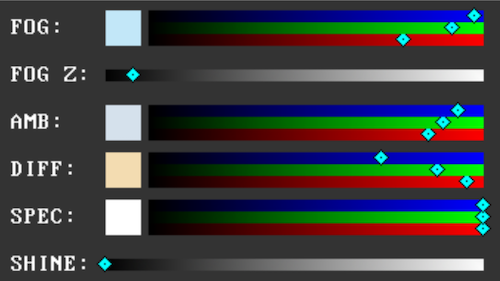
- Fog: Fog color
- Fog Z: Fog intensity
- Amb: Ambient Light (see video)
- Diff: Diffuse Light (see video)
- Spec: Specular Light (see video)
- Shine: How reflective
Blend Modes

- +: additive (increases height, makes colors brighter)
- -: subtractive (subtracts height, makes colors darker)
- a: alpha blending (good for color views)
- =: no blending (good for setting exact height)
- *: multiplicative (use to reduce height while preserving shape)
Netlify
Netlify is a tool that allows you to upload HTML files to a server and access it via a URL for free.
- Create an account with Netlify and login.
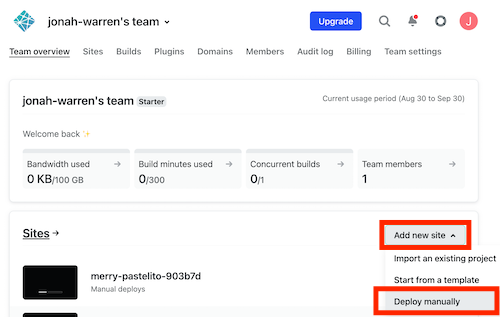
- On the Team Overview page, click Add New Site and Deploy Manually.
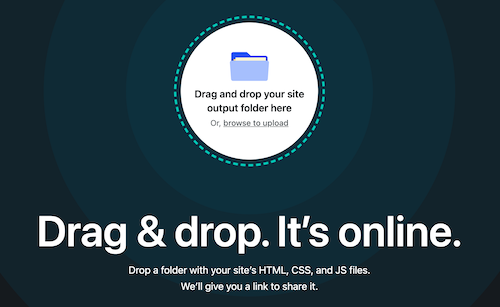
- Drag the exported Vertex Meadow folder to the window.
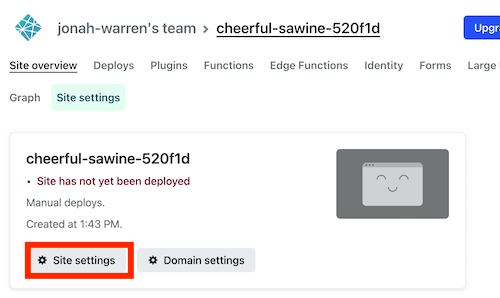
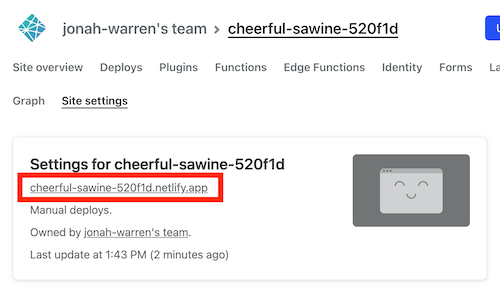
- To find the URL, click Site settings.
- Find the URL under Settings. Post the URL on Trello to share it. You'll be doing this for your prototype.
Note: You can host on itch.io. To do that, create an account, create a new project from your dashboard, select HTML as Kind of project, zip up your folder, change Visibility & access to public, and upload it via the upload button. Finally, Click Save and view page, return, and change to publish to get the URL.
Incorporating Sound
To incorporate audio into your Vertex Meadow experience:
- Create or find a WAV or MP3 audio file you'd like to use.
- Include this file in the folder exported by Vertex Meadow.
- There should be an index.html file in this folder. Open that file with a text editor like Sublime Text.
- Scroll to the end of the file and find the
</body>tag. Before that tag, paste the code starting from the<script>tag below (ending at</script>). Changebeach.wavto the name of your audio file. - Remove
a.loop = true;if you don't want it to loop. Adjust 0.4 to be louder or softer, if needed. - Save the HTML file.
- Reupload a zipped up folder to netlify or itch.io with the edited index.html and audio files.
  ...
  <script>document.addEventListener("click", () => {
      a = new Audio("beach.wav"); a.loop = true; a.volume = 0.4; a.play();
    }, { once: true });
  </script>
</body>
This will allow you to hear audio after you click the webpage. After you've added the code, you can also test the audio (but not the Vertex Meadow part) by opening the index.html page locally in a browser and clicking on the page.
To play two files simultaneously:
  ...
  <script>document.addEventListener("click", () => {
      a = new Audio("beach.wav"); a.loop = true; a.volume = 0.4; a.play();
      b = new Audio("song.wav"); b.loop = true; b.volume = 0.4; b.play();
    }, { once: true });
  </script>
</body>